Developing a File Browser in JavaFX
Introduction
This document illustrates the development of a simple text file browser implemented in JavaFX. Starting with the basics of creating windows and displaying text the application is incrementally refined until it implements its expected functionality.
It's assumed the reader is familiar with the Java programming language
as well as with the basics of JavaFX Script ([Getting Started]).
About File Browsing
This section describes the expected functionality of our (minimalist) file browser.
A file browser allows the user to select and open text files to be
displayed in a window. For this, our example browser presents the user
an Open menu option that looks like:
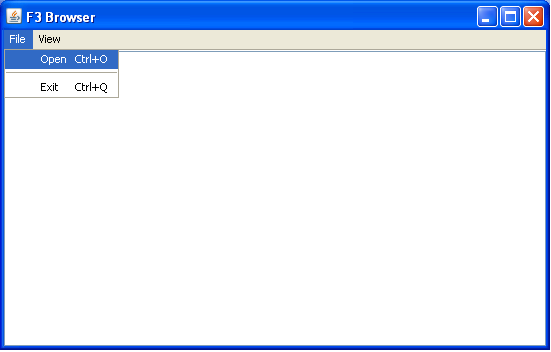
Selecting this menu item causes a file selection dialog to appear:
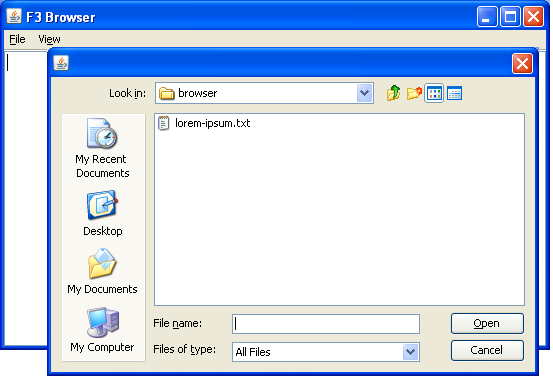
Once a file is selected its contents are displayed in the browser's text area:
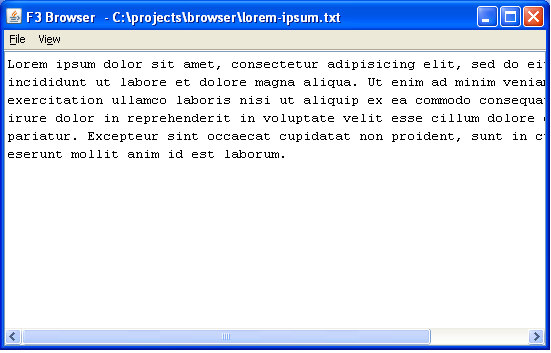
As seen in the above snapshot, the selected file contains long lines
that don't fit properly in the window. The Line Wrap item
of the View menu causes long lines to be folded
like in:
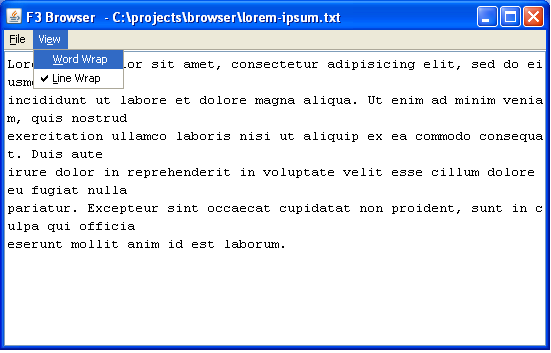
Here, however, words are truncated along lines in a less than
readable manner. The Word Wrap item of the
View menu causes truncated words to be wrapped like
in:
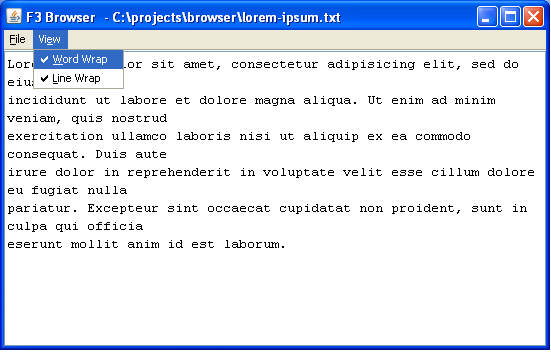
Finally, we'd like our application to keep a list of the recently browsed files so that it's possible to return to them without using the file selection dialog:
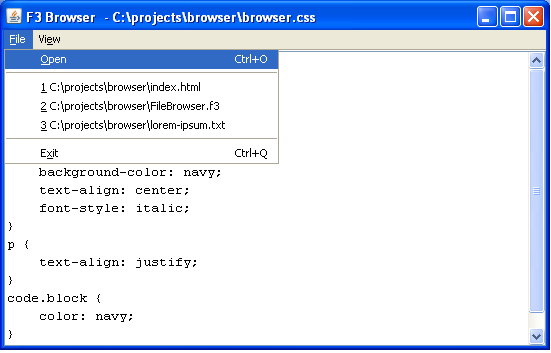
The remaining of this document presents a step-by-step process in which the described functionality is implemented as an JavaFX script.
Displaying Windows and Text
Before we implement file browsing logic as such, we'll see how to display windows and constant text in JavaFX.
If we want to display a simple window containing fixed text like:
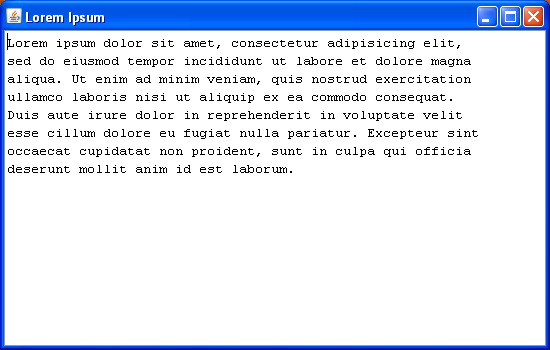
then the JavaFX code required is:
package browser;
 import javafx.ui.Frame;
 import javafx.ui.RootPane;
 import javafx.ui.TextArea;
 import java.lang.System;
 Frame {
     width: 550
     height: 350
     visible: true
     title: 'Lorem Ipsum'
     onClose: operation() { System.exit(0); }
     content: RootPane {
         content: TextArea {
             text:
 "Lorem ipsum dolor sit amet, consectetur adipisicing elit,
 sed do eiusmod tempor incididunt ut labore et dolore magna
 aliqua. Ut enim ad minim veniam, quis nostrud exercitation
 ullamco laboris nisi ut aliquip ex ea commodo consequat.
 Duis aute irure dolor in reprehenderit in voluptate velit
 esse cillum dolore eu fugiat nulla pariatur. Excepteur sint
 occaecat cupidatat non proident, sunt in culpa qui officia
 deserunt mollit anim id est laborum."
         }
     }
 };
Let's dissect this code.
The package Directive
In the statement:
package browser;
the package directive defines the namespace within which
the JavaFX compilation unit exists. The notion of package in JavaFX is very
close to that of Java.
Unlike Java, though, an JavaFX compilation unit is not limited to
defining only one class per source file. JavaFX source files can declare
several classes as well as top-level functions, operations and global
code and variables. As in all scripting languages, top-level global
code is executed inmmediately upon interpretation.
The import Directive
import javafx.ui.Frame;
import javafx.ui.RootPane;
import javafx.ui.TextArea;
import java.lang.System;
By convention, classes under the f3 root package
correspond to language-supplied classes. This is
equivalent to the java root package in the Java
programming language.
In general, the import statement is equivalent in
meaning to their Java counterpart. For classes to be used without
package qualification they must be explicitly imported. Otherwise
class names must be fully qualified like in:
<<javafx.ui.Frame>> {
    width: 550
    height: 350
    onClose: operation() { <<java.lang.System>>.exit(0); }
    // snip...
}
Java classes are imported using the same syntax and semantics of
JavaFX classes. In general, there's no runtime distinction between
JavaFX and Java classes and objects.
Note, however, that Java classes under the java.lang
package (such as java.lang.System) still need to
explicitly imported; they're not implicitly imported as is the
case in Java. Likewise, no f3 package is implicitly
imported.
The Applications's Main Frame
Most JavaFX GUI applications declare one Frame object
literal that corresponds to the top-level window of the GUI:
Frame {
    width:550
    height: 350
    visible: true
    title: 'Lorem Ipsum'
    onClose: operation() { System.exit(0); }
    content: RootPane {
        content: TextArea {
            text:
"Lorem ipsum dolor sit amet, consectetur adipisicing elit,
sed do eiusmod tempor incididunt ut labore et dolore magna
aliqua. Ut enim ad minim veniam, quis nostrud exercitation
ullamco laboris nisi ut aliquip ex ea commodo consequat.
Duis aute irure dolor in reprehenderit in voluptate velit
esse cillum dolore eu fugiat nulla pariatur. Excepteur sint
occaecat cupidatat non proident, sunt in culpa qui officia
deserunt mollit anim id est laborum."
        }
    }
};
In the above snippet the width and height
attributes determine the size of the window, while the
title attribute determines the text used as the window's
caption.
The onClose operation is an attribute of type
operation(). Class operations are a functional
construct allowing the embeding of event handling code in object
literal attributes. This simple and readable mechanism replaces the
tedious listener or event handler interface implementation required
by conventional Swing programming.
Frames require a container as their content. In our case we've
chosen a top-level RootPane container.
RootPane, in turn, requires one or more JavaFX widgets as
its content. In order to keep our example simple, we've chosen a
TextArea widget to display our fixed text.
Notice that the string constant containing our sample text spans
several lines. Unlike Java, an JavaFX string constant can contain
newlines.
JavaFX string constants can also contain embedded expressions that are
evaluated at runtime. Such expressions are enclosed in curly braces
and can nest:
"The current date is {new <<java.util.Date>>()}."
Adding a Menu
The next step is to add a menu to our application. Since no real
browser functionality is yet in place, a File menu will
be created with a single action: Exit. The application
would then look like:
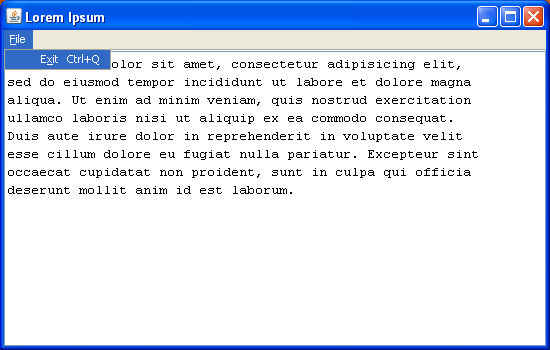
The JavaFX code is now:
package browser;
import javafx.ui.Frame;
import javafx.ui.Menu;
import javafx.ui.MenuBar;
import javafx.ui.MenuItem;
import javafx.ui.RootPane;
import javafx.ui.TextArea;
import java.lang.System;
Frame {
    width: 550
    height: 350
    visible: true
    title: 'Lorem Ipsum'
    onClose: operation() { System.exit(0); }
    content: RootPane {
        menubar: MenuBar {
            menus: Menu {
                text: "File"
                mnemonic: F
                items: MenuItem {
                    text: "Exit"
                    mnemonic: X
                    accelerator: {
                        modifier: CTRL
                        keyStroke: Q
                    }
                    action: operation() { System.exit(0); }
                }
            }
        }
        content: TextArea {
            text:
"Lorem ipsum dolor sit amet, consectetur adipisicing elit,
sed do eiusmod tempor incididunt ut labore et dolore magna
aliqua. Ut enim ad minim veniam, quis nostrud exercitation
ullamco laboris nisi ut aliquip ex ea commodo consequat.
Duis aute irure dolor in reprehenderit in voluptate velit
esse cillum dolore eu fugiat nulla pariatur. Excepteur sint
occaecat cupidatat non proident, sunt in culpa qui officia
deserunt mollit anim id est laborum."
        }
    }
};
A MenuBar has been added as an attribute of the
RootPane container. A MenuBar may
have one or more Menus each having one or more
MenuItems.
In our case we've added a single File menu with a
single Exit menu item.
Note that the accelerator keystroke combination is Ctrl-Q
instead of Ctrl-X as the menu item mnemonic would
suggest. This is due to the fact that, in most environments,
Ctrl-X is reserved for the cut
clipboard operation.
The action operation attribute is the event handler to be
invoked when the menu item is clicked on or is activated via the
mnemonic or accelerator keys. As seen, it simply calls
System.exit(0) to terminate the application.
A Simple GUI Application Pattern
Before we go on to adding more functionality to our application, let's discuss a common pattern recurring in simple JavaFX GUI applications. Understanding this pattern will enable us to add the missing functionality to our application. It's worth noting, however, that this is just a single pattern among many, more complex ones commonly used in JavaFX.
A simple JavaFX GUI application consists of:
A model class whose attributes correspond to data items used by the GUI
A single model class instance referenced and used by the GUI
A Frame object literal embodying the GUI
as such
Thus, a simplified view of our file browser application would look
like:
// The model class...
class BrowserModel {
    attribute fileName: String;
    attribute fileContents: String;
    operation loadFile(file: File);
}
// snip...
// The model instance
var model = new BrowserModel;
// The main GUI frame
Frame {
    width: 550
    height: 350
    visible: true
    title: 'Browser'
    onClose: operation() { System.exit(0); }
    content: RootPane {
        menubar: MenuBar {
            // snip...
        }
        content: TextArea {
            text: bind model.fileContents // The GUI references the model instance
        }
    }
};
For simple applications this pattern occurs once at the script top-level. For more complex applications, though, it is possible to have multiple frames sharing the same or different models.
The Model Class
The structure of the model class is determined by what data items are used or referenced by the GUI.
In our case, we want the browser to display the file name on
its window title. We obviously want to display the
file contents, too. Finally, we'll also need a means of
loading file contents given a java.io.File object.
Thus, our model class will be:
class BrowserModel {
    attribute fileName: String; // To display in the window caption
    attribute contents: String; // To display in the text area
    operation loadFile(file: File); // To load file contents
}
The implementation of the loadFile operation is
straightforward:
operation BrowserModel.loadFile(file: File) {
    var reader = new BufferedReader(new FileReader(file));
    var builder = new StringBuilder();
    while (true) {
        var line = reader.readLine();
        if (line == null) {
            break;
        }
        builder.append(line);
        builder.append('\n');
    }
    reader.close();
    this.fileName = file.canonicalPath;
    this.contents = builder.toString();
}
Note how fileName is assigned from the file's
canonicalPath attribute rather than from its
getCanonicalPath() method.
This is possible because, in JavaFX, Java bean properties can be
referenced as JavaFX-style attributes.
The Model Instance
Instantiating the model instance is trivial
var model = new BrowserModel;
For our simple example, there is only one model instance for the entire GUI application. This single instance is subsequently referenced and used inside the GUI frame in both declarative and procedural ways.
The GUI Frame
The GUI frame is actually an object literal whose nesting structure mirrors that of the GUI visual appearance. For our simple browser the GUI frame is:
Frame {
    var: win
    width: 800
    height: 700
    visible: true
    title: bind "{model.fileName}"
    onClose: operation() { System.exit(0); }
    content: RootPane {
        menubar: MenuBar {
            menus: [
                Menu {
                    text: "File"
                    mnemonic: F
                    items: bind [
                        MenuItem {
                            text: "Open"
                            mnemonic: O
                            accelerator: {
                                modifier: CTRL
                                keyStroke: O
                            }
                            action: operation() {
                                var fc = FileChooser {
                                    action: operation(file: File) {
                                        model.loadFile(file);
                                    }
                                };
                                fc.showOpenDialog(win);
                            }
                        },
                        MenuSeparator {},
                        MenuItem {
                            text: "Exit"
                            mnemonic: X
                            accelerator: {
                                modifier: CTRL
                                keyStroke: Q
                            }
                            action: operation() {
                                System.exit(0);
                            }
                        },
                    ]
                },
            ]
        }
        content: TextArea {
            text: bind model.contents
        }
    }
};
The bind Operator
bind is a powerful and commonly used JavaFX construct.
Let's take a look at the frame's title declaration:
title: bind "{model.fileName}"This means that the window's caption will contain whatever the
value of the "{model.fileName}" expression is.
Thus, if the file name is changed programmatically, the window title
will be automatically updated without the need to write event handlers
or synchronization logic.
In general, when a variable or initializer is bound to an expression
its value will automatically change whenever any of the variables
participating in the expression changes. This is akin to
spreadsheet formula recalculation. Bindings may be declared as
lazy in which case recalculation takes place only
when the bound variable value is requested.
In our example bind is also used to provide a value for
the text area's text content:
content: TextArea {
    text: bind model.contents
}
This is a special case of bind where the right-hand
part of the bind is a class attribute rather than an expression.
In this case, the binding is bidirectional: any change
in model.contents will be automatically reflected
in the text area's text attribute and, correspondingly,
any change in the text area's text attribute will be
automatically reflected in model.contents.
For input-capable widgets such as text fields, text areas or check and
radio buttons this is the basic mechanism used to propagate user input
to the model's data.
The var pseudo-attribute
Note how the frame object literal has an attribute called
var:
Frame {
    var: win
    width: 800
    height: 700
    visible: true
    // snip...
}
This pseudo-attribute does not correspond to any "real" attribute
defined for class Frame. Instead, it introduces a local
variable that points to the frame object being populated. This variable
is visible only inside the frame's object literal and can be used
whenever a reference to the object is needed. Of course, the
var pseudo-attribute can be used for any object type in
an object literal (not just for Frame).
In general, function, operation and variable declarations are allowed
between attribute initializers. Such program elements are visible only
after their declaration and only inside their enclosing object literal
block.
In our example, the frame reference is needed to show the open file
dialog, an operation that requires specifying the associated frame.
This can be seen in the Open menu item:
MenuItem {
    text: "Open"
    mnemonic: O
    accelerator: {
        modifier: CTRL
        keyStroke: O
    }
    action: operation() {
        var fc = FileChooser {
            action: operation(file: File) {
                model.loadFile(file);
            }
        };
        fc.showOpenDialog(win);
    }
},
Here, the action associated with menu item Open
creates a FileChooser widget and displays it
specifying the current frame (var: win) as its owner
window.
Notice, by the way, that the FileChooser own action
is to invoke the loadFile operation on the model instance.
This operation changes the value of model.fileName to which
the frame title is bound thereby causing the window's caption to be
automatically updated.
First Working Version
We have now a working version of our minimalist file browser. The complete source code is:
import javafx.ui.FileChooser;
import javafx.ui.Frame;
import javafx.ui.Menu;
import javafx.ui.MenuBar;
import javafx.ui.MenuItem;
import javafx.ui.MenuSeparator;
import javafx.ui.RootPane;
import javafx.ui.TextArea;
import java.io.BufferedReader;
import java.io.File;
import java.io.FileReader;
import java.lang.StringBuilder;
import java.lang.System;
class BrowserModel {
    attribute fileName: String;
    attribute contents: String;
    operation loadFile(file: File);
}
operation BrowserModel.loadFile(file: File) {
    var reader = new BufferedReader(new FileReader(file));
    var builder = new StringBuilder();
    while (true) {
        var line = reader.readLine();
        if (line == null) {
            break;
        }
        builder.append(line);
        builder.append('\n');
    }
    reader.close();
    this.fileName = file.canonicalPath;
    this.contents = builder.toString();
}
var model = new BrowserModel;
Frame {
    var: win
    width: 550
    height: 350
    visible: true
    title: bind "{model.fileName}"
    onClose: operation() { System.exit(0); }
    content: RootPane {
        menubar: MenuBar {
            menus: [
                Menu {
                    text: "File"
                    mnemonic: F
                    items: bind [
                        MenuItem {
                            text: "Open"
                            mnemonic: O
                            accelerator: {
                                modifier: CTRL
                                keyStroke: O
                            }
                            action: operation() {
                                var fc = FileChooser {
                                    action: operation(file: File) {
                                        model.loadFile(file);
                                    }
                                };
                                fc.showOpenDialog(win);
                            }
                        },
                        MenuSeparator {},
                        MenuItem {
                            text: "Exit"
                            mnemonic: X
                            accelerator: {
                                modifier: CTRL
                                keyStroke: Q
                            }
                            action: operation() {
                                System.exit(0);
                            }
                        },
                    ]
                },
            ]
        }
        content: TextArea {
            text: bind model.contents
        }
    }
};
The initial, empty window will look like:
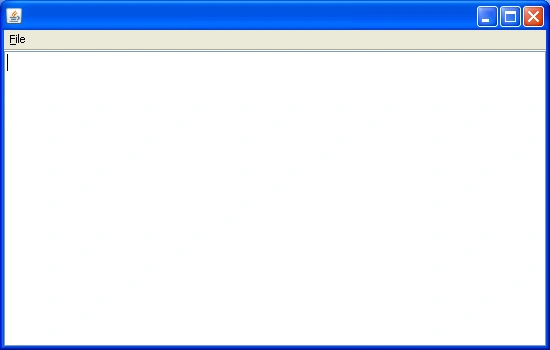
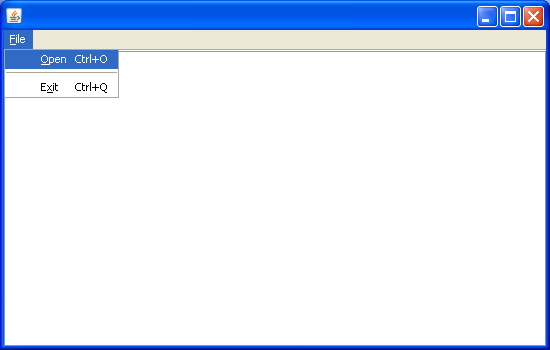
We have added a menu separator between the Open and
Exit menu items. Thus, upon activating the menu,
the window will look like:
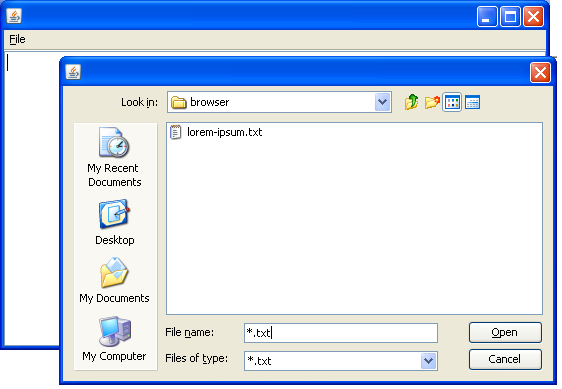
After selecting the Open menu item, a file
chooser dialog is displayed that allows the user to select what
file to browse:
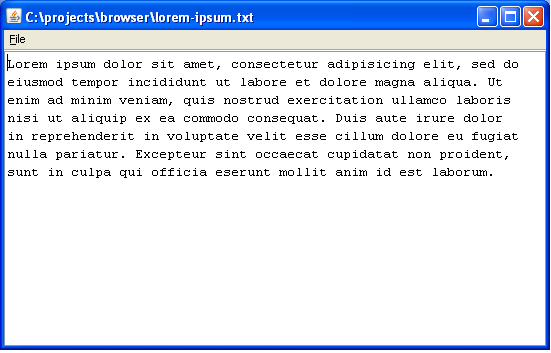
Once the file has been selected its contents are displayed in the frame's text area:
A Few Improvements
We now introduce some improvements to our file browser application.
Exiting the Application
Note that the onClose frame attribute and the
Exit menu item both invoke
System.exit(0). This redundancy becomes inconvenient when
it's necessary to execute wrapup logic prior to exiting the
application. Such logic is better centralized in a single location.
Thus, a better way to structure this is to add an exit()
operation to the BrowserModel class as follows:
class BrowserModel {
    attribute fileName: String;
    attribute contents: String;
    operation openFile(file: File);
    operation exit();
}
operation BrowserModel.exit() {
    // Any wrapup logic would go here
    System.exit(0);
}
Given this operation, the event handler and the menu item can now
simply invoke the exit() operation on the model instance:
Frame {
    var: win
    width: 800
    height: 700
    visible: true
    onClose: operation() { model.exit(); }
    // Snip...
        MenuItem {
            text: "Exit"
            mnemonic: X
            accelerator: {
                modifier: CTRL
                keyStroke: Q
            }
            action: operation() { model.exit(); }
        },
    // Snip..
};
Avoiding Content Modification
By default, a TextArea allows user input on its text
content. Since our application is a read-only browser -not an
editor- the user may be confused because she would be able to
modify text and, therefore, would also expect to be able to save
changes. In order to avoid such confusion it's necessary to disable
user input:
content: TextArea {
    editable: false
    text: bind model.contents
}
Showing the Application Title
It's customary for browsers to have a window caption that shows
the name of the application plus the name of the file being
displayed. For this we modify our title frame property
as follows:
Frame {
    var: win
    width: 550
    height: 350
    visible: true
    onClose: operation() { model.exit(); }
    function makeTitle(fileName: String) =

        "JavaFX Browser {if fileName <> null and fileName.length() <> 0 then " - {fileName}" else ''}";
    title: bind makeTitle(model.fileName)
    // Snip...
};
Notice that the declaration of function makeTitle is
inlined in the Frame object literal. This is another
case in which an inline declaration is made between property
initializers. As usual, the declared function is visible only
after its declaration and only inside its enclosing object literal
block.
In our case, function makeTitle is declared as a simple
string expression that generates the application name
(JavaFX Browser) plus an optional dash and the file name if it's
set.
Despite its procedural appearance, the
if a then b else c
expression is actually equivalent to Java's
a ? b : c.
Thus, inside expressions, if is a ternary operator, not a
flow control directive.
It's also worth noting that in the title string
expression there is a nested substitution expression
({filename}).
Revised Code
The following program listing shows our code after adding these improvements. Changes introduced with respect to the previous version are shown in bold.
package browser;
import javafx.ui.FileChooser;
import javafx.ui.Frame;
import javafx.ui.Menu;
import javafx.ui.MenuBar;
import javafx.ui.MenuItem;
import javafx.ui.MenuSeparator;
import javafx.ui.RootPane;
import javafx.ui.TextArea;
import java.io.BufferedReader;
import java.io.File;
import java.io.FileReader;
import java.lang.StringBuilder;
import java.lang.System;
class BrowserModel {
    attribute fileName: String;
    attribute contents: String;
    operation loadFile(file: File);
    operation exit();
}
operation BrowserModel.exit() {
    System.exit(0);
}
operation BrowserModel.loadFile(file: File) {
    var reader = new BufferedReader(new FileReader(file));
    var builder = new StringBuilder();
    while (true) {
        var line = reader.readLine();
        if (line == null) {
            break;
        }
        builder.append(line);
        builder.append('\n');
    }
    reader.close();
    this.fileName = file.canonicalPath;
    this.contents = builder.toString();
}
var model = new BrowserModel;
Frame {
    var: win
    width: 800
    height: 700
    visible: true
    onClose: operation() { model.exit(); }
    function makeTitle(fileName: String) =

        "Browser {if fileName <> null and fileName.length() <> 0 then " - {fileName}" else ''}";
    title: bind makeTitle(model.fileName)
    content: RootPane {
        menubar: MenuBar {
            menus: [
                Menu {
                    text: "File"
                    mnemonic: F
                    items: bind [
                        MenuItem {
                            text: "Open"
                            mnemonic: O
                            accelerator: {
                                modifier: CTRL
                                keyStroke: O
                            }
                            action: operation() {
                                var fc = FileChooser {
                                    action: operation(file: File) {
                                        model.loadFile(file);
                                    }
                                };
                                fc.showOpenDialog(win);
                            }
                        },
                        MenuSeparator {},
                        MenuItem {
                            text: "Exit"
                            mnemonic: X
                            accelerator: {
                                modifier: CTRL
                                keyStroke: Q
                            }
                            action: operation() {
                                model.exit();
                            }
                        },
                    ]
                },
            ]
        }
        content: TextArea {
            editable: false
            text: bind model.contents
        }
    }
};
This is a good moment to ponder how simple and expressive JavaFX is for building GUI's. Our working file browser weighs a mere 100 lines of code practically all of which is declarative. Contrast this with an equivalent Swing application.
Adding a View Menu
A View menu provides options to control the display
of file contents inside the text area:
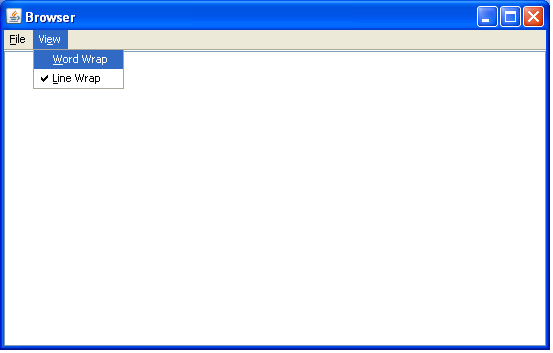
Adding a view menu involves extending class BrowserModel
to add attributes corresponding to the word wrap and
line wrap features of TextArea:
class BrowserModel {
    attribute fileName: String;
    attribute contents: String;
    attribute wordWrap: Boolean;
    attribute lineWrap: Boolean;
    operation loadFile(file: File);
    operation exit();
}
Correspondingly, the TextArea object literal must be
extended to bind to these new attributes.
content: TextArea {
    editable: false
    wrapStyleWord: bind model.wordWrap
    lineWrap: bind model.lineWrap
    text: bind model.contents
}
Finally, a new menu must be added to allow the user to control the wrapping settings:
Menu {
    text: "View"
    mnemonic: E
    items: [
        CheckBoxMenuItem {
            text: "Word Wrap"
            mnemonic: W
            selected: bind model.wordWrap
        },
        CheckBoxMenuItem {
            text: "Line Wrap"
            mnemonic: L
            selected: bind model.lineWrap
        },
    ]
},
It's interesting to see how bind works behind the scenes
to synchronize program state. Let's consider the following scenario:
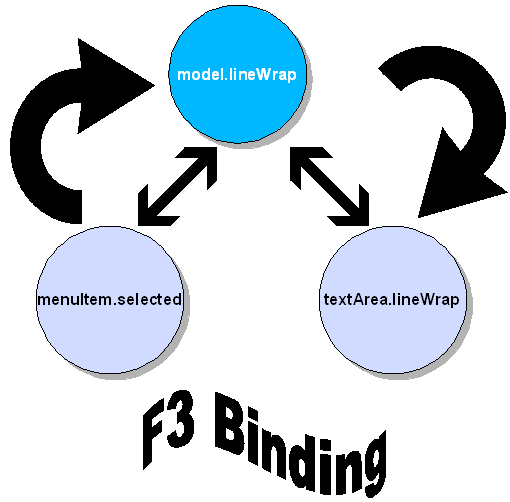
The user checks the menu item labeled Line Wrap. This
changes the menu item's selected attribute from
false to true. A check mark is placed
to the left of the menu item's label.
The menu item's selected attribute is bound
to the model instance lineWrap attribute in a
bidirectional fashion. Therefore when the value of
selected changes in response to user input,
the value of attribute lineWrap in the model
instance changes also to true.
The attribute lineWrap of the browser's
TextArea is, in turn, bidirectionally bound to the
model instance lineWrap attribute. Thus, when
the model instance attribute changes in response to the menu item
change, the change propagates to the lineWrap
attribute of the text area.
The change in attribute lineWrap in the text area
eventually propagates to the underlying Swing JTextArea
component. This results in an immediate visual change where
long lines are folded.
Contrast this with conventional Swing programming where procedural
event handlers must be written to handle and propagate state change.
The following program listing shows our code after adding the view
menu. Changes introduced with respect to the previous version are
shown in bold.
package browser;
import javafx.ui.CheckBoxMenuItem;
import javafx.ui.FileChooser;
import javafx.ui.Frame;
import javafx.ui.Menu;
import javafx.ui.MenuBar;
import javafx.ui.MenuItem;
import javafx.ui.MenuSeparator;
import javafx.ui.RootPane;
import javafx.ui.TextArea;
import java.io.BufferedReader;
import java.io.File;
import java.io.FileReader;
import java.lang.StringBuilder;
import java.lang.System;
class BrowserModel {
    attribute fileName: String;
    attribute contents: String;
    attribute wordWrap: Boolean;
    attribute lineWrap: Boolean;
    operation loadFile(file: File);
    operation exit();
}
operation BrowserModel.exit() {
    System.exit(0);
}
operation BrowserModel.loadFile(file: File) {
    var reader = new BufferedReader(new FileReader(file));
    var builder = new StringBuilder();
    while (true) {
        var line = reader.readLine();
        if (line == null) {
            break;
        }
        builder.append(line);
        builder.append('\n');
    }
    reader.close();
    this.fileName = file.canonicalPath;
    this.contents = builder.toString();
}
var model = new BrowserModel;
Frame {
    var: win
    width: 800
    height: 700
    visible: true
    onClose: operation() { model.exit(); }
    function makeTitle(fileName: String) =

        "Browser {if fileName <> null and fileName.length() <> 0 then " - {fileName}" else ''}";
    title: bind makeTitle(model.fileName)
    content: RootPane {
        menubar: MenuBar {
            menus: [
                Menu {
                    text: "File"
                    mnemonic: F
                    items: bind [
                        MenuItem {
                            text: "Open"
                            mnemonic: O
                            accelerator: {
                                modifier: CTRL
                                keyStroke: O
                            }
                            action: operation() {
                                var fc = FileChooser {
                                    action: operation(file: File) {
                                        model.loadFile(file);
                                    }
                                };
                                fc.showOpenDialog(win);
                            }
                        },
                        MenuSeparator {},
                        MenuItem {
                            text: "Exit"
                            mnemonic: X
                            accelerator: {
                                modifier: CTRL
                                keyStroke: Q
                            }
                            action: operation() {
                                model.exit();
                            }
                        },
                    ]
                },
                Menu {
                    text: "View"
                    mnemonic: E
                    items: [
                        CheckBoxMenuItem {
                            text: "Word Wrap"
                            mnemonic: W
                            selected: bind model.wordWrap
                        },
                        CheckBoxMenuItem {
                            text: "Line Wrap"
                            mnemonic: L
                            selected: bind model.lineWrap
                        },
                    ]
                },
            ]
        }
        content: TextArea {
            editable: false
            wrapStyleWord: bind model.wordWrap
            lineWrap: bind model.lineWrap
            text: bind model.contents
        }
    }
};
Adding the view menu fattened our code size to 121 lines, 99% of which correspond to declarative, non-procedural code. Notice also how the containment structure of this declarative code mirrors the visual appearance and the widget composition of the GUI.
Adding a List of Recently Opened Files
Our last goal is to maintain a dynamic set of menu items under
the File menu where each menu item corresponds to a
previously viewed file:
To maintain a list of recently opened files we extend the model
class to add a recentFileNames array attribute.
class BrowserModel {
    attribute fileName: String;
    attribute fileContents: String;
    attribute recentFileNames: String*;
    attribute lineWrap: Boolean;
    attribute wordWrap: Boolean;
    operation loadFile(file: File);
    operation exit();
}
A file name is added to the list of recently opened files
whenever a new file is opened and the previous one abandoned.
The context appropriate to capture this event is in the
fileName attribute value change trigger:
attribute BrowserModel.fileName = null;
trigger on BrowserModel.fileName[oldValue] = newValue {
    var i:Number;
    if (oldValue <> null and oldValue <> newValue) {
        delete recentFileNames[i | i == newValue];
        insert oldValue as first into recentFileNames;
        delete recentFileNames[i | indexof i > 8];
    }
}
Here, we initialize the fileName attribute value
to null implying no file has been opened so far.
Whenever a file is loaded the value of the fileName
attribute changes and the above trigger fires.
The fileName Trigger
The aliases chosen for the previous and current value of
fileName are oldValue and
newValue respectively.
The logic inside trigger on fileName change executes only
if:
At least one file has been previously opened. This is the case when
fileName is not null.
The new file being opened is not the same currently open file
if (oldValue <> null and oldValue <> newValue)
If these conditions hold, the first step is to remove the current file from the list of recently viewed files. This prevents the file from appearing in the menu more than once when it has been visited several times:
delete recentFileNames[. == newValue];
In the list of recently viewed files the most recent one will be the
first in the menu list. For this reason, its name must be added to the
recently viewed file array as first:
insert oldValue as first into recentFileNames;
If the resulting array has more than 9 elements the excess element is deleted in a least-recently-used fashion:
delete recentFileNames[indexof . > 8];
The reason why we limit the size of the recently viewed files to 9
elements is that we intend to use keystrokes _1 through
_9 as file menu mnemonics.
The Dynamic Menu
The following listing shows how the File
menu has been extended to include a dynamic list of file names:
import javafx.ui.KeyStroke;
// Snip...
Menu {
    var keyStrokes:KeyStroke = [_1,_2,_3,_4,_5,_6,_7,_8,_9]
    text: "File"
    mnemonic: F
    items: bind [
        MenuItem {
            text: "Open"
            mnemonic: O
            accelerator: {
                modifier: CTRL
                keyStroke: O
            }
            action: operation() {
                var fc = FileChooser {
                    action: operation(file: File) {
                        model.loadFile(file);
                    }
                };
                fc.showOpenDialog(win);
            }
        },
        if sizeof model.recentFileNames > 0
        then MenuSeparator {}
        else [],
        foreach (f in model.recentFileNames)
            MenuItem {
                mnemonic: bind keyStrokes[indexof f]
                text: bind "{indexof f + 1} {f}"
                action: operation() {
                    model.loadFile(new File(f));
                }
            },
        MenuSeparator {},
        MenuItem {
            text: "Exit"
            mnemonic: X
            accelerator: {
                modifier: CTRL
                keyStroke: Q
            }
            action: operation() { model.exit(); }
        },
    ]
},
A MenuSeparator is inserted only if the model instance's
recentFileNames is not empty. This is true only when at
least 2 files have been opened:
if sizeof model.recentFileNames > 0
then MenuSeparator {}
else [],
Note how object literals can be populated conditionally. Here,
the MenuSeparator may appear or disappear
subject to a runtime condition. Conditional object literal fragments
may affect the GUI structure or appearance in response to changes to
the value of variables used in a conditional expression.
The key to dynamically generating menu items is JavaFX's powerful
foreach construct:
foreach (f in model.recentFileNames)
    MenuItem {
        mnemonic: bind keyStrokes[indexof f]
        text: bind "{indexof f + 1} {f}"
        action: operation() {
            model.loadFile(new File(f));
        }
    },
foreach traverses an array and yields another array
each of whose elements is built from its body template. In this case,
the template to be expanded on each iteration is a MenuItem
object literal. In our example, the iteration variable to be referenced
inside the template is f.
Notice that the mnemonic and text
attributes of each MenuItem are bound to
(rather than just assigned from) expressions involving the iteration
variable f. This ensures that whenever the
model.recentFileNames array changes the whole collection
of menu items is rebuilt.
model.recentFileNames changes inside the
BrowserModel.fileName trigger presented above. Attribute
Browser.fileName, in turn, changes whenever a new file is
loaded. The net effect is that if a new file is selected for viewing
then the File menu is dyamically rebuilt to include
the new list of recently viewed files. All this without intervening
procedural logic.
The Complete Application
In 147 lines of declarative code our application has now achieved its intended functionality. The final code is:
package browser;
import javafx.ui.CheckBoxMenuItem;
import javafx.ui.FileChooser;
import javafx.ui.Frame;
import javafx.ui.KeyStroke;
import javafx.ui.Menu;
import javafx.ui.MenuBar;
import javafx.ui.MenuItem;
import javafx.ui.MenuSeparator;
import javafx.ui.RootPane;
import javafx.ui.TextArea;
import java.io.BufferedReader;
import java.io.File;
import java.io.FileReader;
import java.lang.StringBuilder;
import java.lang.System;
class BrowserModel {
    attribute fileName: String;
    attribute fileContents: String;
    attribute recentFileNames: String*;
    attribute lineWrap: Boolean;
    attribute wordWrap: Boolean;
    operation loadFile(file: File);
    operation exit();
}
attribute BrowserModel.fileName = null;
trigger on BrowserModel.fileName[oldValue] = newValue {
    if (oldValue <> null and oldValue <> newValue) {
        delete recentFileNames[. == newValue];
        insert oldValue as first into recentFileNames;
        delete recentFileNames[indexof . > 8];
    }
}
operation BrowserModel.exit() {
    System.exit(0);
}
operation BrowserModel.loadFile(file: File) {
    var reader = new BufferedReader(new FileReader(file));
    var builder = new StringBuilder();
    while (true) {
        var line = reader.readLine();
        if (line == null) {
            break;
        }
        builder.append(line);
        builder.append('\n');
    }
    reader.close();
    this.fileName = file.canonicalPath;
    this.fileContents = builder.toString();
}
var model = new BrowserModel;
Frame {
    var: win
    width: 550
    height: 350
    visible: true
    onClose: operation() { model.exit(); }
    function makeTitle(fileName: String) =

        "JavaFX Browser {if fileName.length() <> 0 then " - {fileName}" else ''}";
    title: bind makeTitle(model.fileName)
    content: RootPane {
        menubar: MenuBar {
            menus: [
                Menu {
                    var keyStrokes:KeyStroke = [_1,_2,_3,_4,_5,_6,_7,_8,_9]
                    text: "File"
                    mnemonic: F
                    items: bind [
                        MenuItem {
                            text: "Open"
                            mnemonic: O
                            accelerator: {
                                modifier: CTRL
                                keyStroke: O
                            }
                            action: operation() {
                                var fc = FileChooser {
                                    action: operation(file: File) {
                                        model.loadFile(file);
                                    }
                                };
                                fc.showOpenDialog(win);
                            }
                        },
                        if sizeof model.recentFileNames > 0
                        then MenuSeparator {}
                        else [],
                        foreach (f in model.recentFileNames)
                            MenuItem {
                                mnemonic: bind keyStrokes[indexof f]
                                text: bind "{indexof f + 1} {f}"
                                action: operation() {
                                    model.loadFile(new File(f));
                                }
                            },
                        MenuSeparator {},
                        MenuItem {
                            text: "Exit"
                            mnemonic: X
                            accelerator: {
                                modifier: CTRL
                                keyStroke: Q
                            }
                            action: operation() { model.exit(); }
                        },
                    ]
                },
                Menu {
                    text: "View"
                    mnemonic: E
                    items: [
                        CheckBoxMenuItem {
                            text: "Word Wrap"
                            mnemonic: W
                            selected: bind model.wordWrap
                        },
                        CheckBoxMenuItem {
                            text: "Line Wrap"
                            mnemonic: L
                            selected: bind model.lineWrap
                        },
                    ]
                },
            ]
        }
        content: TextArea {
            wrapStyleWord: bind model.wordWrap
            lineWrap: bind model.lineWrap
            text: bind model.fileContents
        }
    }
};